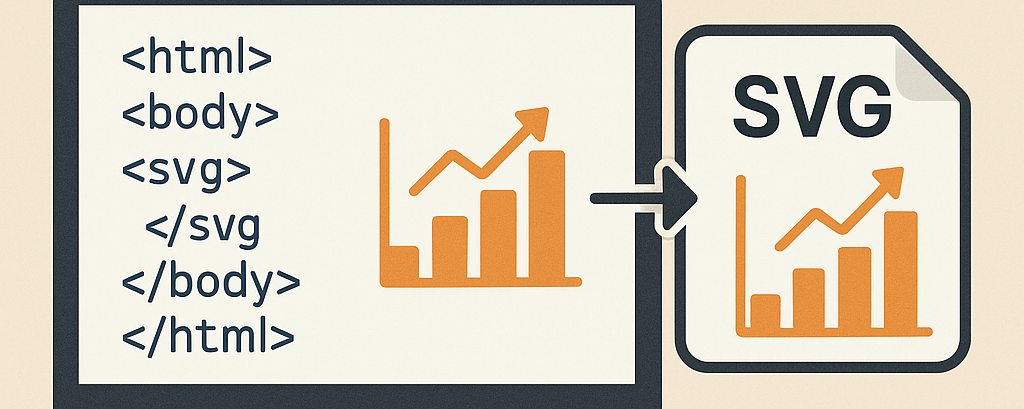
How to Insert SVG Graphics on the Web: Complete Guide 2025
SVG (Scalable Vector Graphics) graphics are essential for creating modern and scalable websites. In this guide, we show you how to insert SVG graphics on the web using different methods and practical examples. Create your own SVGs with creadorlogos.com and improve your web design. Let's get started!
Why use SVG graphics on the web?
SVGs are lightweight, scalable vector graphics perfect for the web. They can be inserted in various ways, allowing for animations and styling. Learn more about SVGs in this link.
List of ways to insert an SVG on the web
- As an image
- Inline pasted code
- As an external resource with fallback
- As a simple external resource
- As a CSS background
- In an independent frame
- As a data URI
Insert SVG as an image
This method uses the img tag to insert an SVG as if it were an external image. It is simple and widely compatible, but does not allow direct styling or animation of the SVG.
Personally, I don't usually use this method, although it is valid in many cases if the SVG is not very complex.
Code
<img src="https://creadorlogos.com/images/engranaje-color.svg" alt="SVG Graphic" width="200" height="200">Example

How to insert an SVG as an image using img?
One of the most common ways to display an SVG file in HTML is by using the img tag, just like a PNG or JPG. It is a fast, simple method compatible with all modern browsers.
✅ Pros:
- Very easy to implement.
- Compatible with most browsers.
- Ideal for icons, simple logos, or decorative elements.
❌ Cons:
- You cannot apply internal CSS styles to the SVG (nor animations).
- Cannot interact with the SVG content from the DOM.
- Not suitable for complex SVGs with scripts, animations, or embedded videos.
Insert SVG with inline code
With this method, the SVG code is included directly in the HTML using the svg tag. This allows styling and animating the SVG with CSS or JavaScript, although it can increase the HTML document size.
Code
<svg width="200" height="200" xmlns="http://www.w3.org/2000/svg">
    <rect x="50" y="50" width="100" height="100" fill="green"></rect>
</svg>
Ejemplo
What is the inline svg tag and why is it so useful?
When you use the inline svg tag (i.e., writing the SVG code directly inside the HTML), you can completely control its style, behavior, and animations with CSS or JavaScript.
✅ Pros:
- Allows applying CSS styles directly (colors, transformations, transitions...).
- You can animate SVG elements with CSS or JS without restrictions.
- Accessible from the DOM for dynamic manipulation.
- No external requests required (better performance in some cases).
❌ Cons:
- Increases the HTML file size if the SVG is very large or complex.
- Less reusable: if you use the same SVG on multiple pages, you have to repeat the code.
Insert SVG as an external resource with fallback
The object tag allows inserting an SVG as an external resource and supports fallback content in case the browser cannot display the SVG.
This is the method I use the most, as it doesn't give me issues with videos and animations nested inside the SVG. With other types of methods, I have experienced issues.
What is the object tag and why is it ideal for inserting animated SVGs?
The HTML object tag allows inserting an external SVG file inside a web page. Unlike embed, object supports fallback content, which improves compatibility and accessibility.
✅ Pros:
- Supports fallback (alternative content if the browser cannot display SVG).
- Allows the SVG to maintain its interactivity and internal animations (such as videos, scripts, or embedded CSS).
- More compatible with complex SVGs and internal animations than other methods like
imgorembed.
❌ Cons:
- The SVG content loads as a separate document (cannot be manipulated from the main DOM).
- May require more attention to style and sizing.
Code
<object type="image/svg+xml" data="https://creadorlogos.com/animaciones/slaider/peceraslaider.svg" width="400" height="200">
    <img src="https://creadorlogos.com/images/grafico-fallback.png" alt="Fallback SVG Graphic">
</object>
Example
Insert SVG as a simple external resource
The embed tag inserts an SVG as an external resource. It is less common and does not offer fallback options, but it is simple for some cases.
What is the embed tag and how to use it for SVGs?
The HTML embed tag allows embedding an external SVG file directly into a web page. It is a quick and simple way to display vector graphics, although not the most flexible.
✅ Pros:
- Very simple to use.
- Ideal for loading an SVG as if it were an independent file (like a PDF or video).
❌ Cons:
- Does not allow fallback in browsers that do not support SVG.
- You cannot interact directly with the SVG content from the DOM (e.g., with internal JavaScript or CSS).
Code
<embed type="image/svg+xml" src="https://creadorlogos.com/animaciones/slaider/cerdo.svg" width="200" height="200">Ejemplo
(My first SVG animation made years ago)
Insert SVG as a CSS background
This method uses an SVG as the background of an HTML element via the CSS background-image property. It is ideal for decorations, but does not allow interactivity or animations.
How to use an SVG as a background with background-image in CSS?
The background-image method allows using an SVG file as a decorative background for any HTML element. It is very useful for visual designs, especially in modern and responsive interfaces.
✅ Pros:
- Ideal for visual decorations on buttons, sections, or cards.
- Allows repetition, positioning, and scaling with other CSS properties (
background-repeat,background-size, etc.). - Reduces HTML by keeping the SVG out of the DOM.
❌ Cons:
- Does not allow animating or interacting with the SVG.
- Not accessible to screen readers (cannot use
alt). - Cannot modify its content with internal JavaScript or CSS.
Code
<div style="background-image: url('https://creadorlogos.com/animaciones/slaider/engranaje-fondo-svg.svg'); width: 400px; height: 200px;"></div>Ejemplo en el fondo de esta página
The SVG engranje-fondo-svg.svg has been used as the background of this page. You can see it in the background of the body.
Insert SVG in an independent frame
The iframe tag inserts an SVG into an independent frame, isolating its DOM. It is useful for separate content, but less efficient.
What is the iframe tag and how to use it for SVGs?
The HTML iframe tag allows loading an SVG file inside an independent frame, like a mini page within another. The SVG is isolated from the main DOM, which can be useful in specific cases.
✅ Pros:
- Isolates SVG content from the rest of the page (avoids style or script conflicts).
- Can display complex SVGs with scripts or animations without external interference.
- Useful when total separation between the SVG and the main HTML is needed.
❌ Desventajas:
- Lower performance efficiency, as it loads a separate document.
- You cannot style or access the SVG from the main document.
- Can cause accessibility and SEO issues.
Code
<iframe src="https://creadorlogos.com/animaciones/slaider/logo-escala2.svg" width="400" height="200" frameborder="0"></iframe>Ejemplo
Insert SVG as Data URI
This method encodes the SVG in base64 and inserts it directly into HTML or CSS. It reduces HTTP requests, but can make the code less readable.
Code
<img src="data:image/svg+xml;base64,PHN2ZyB4bWxucz0iaHR0cDovL3d3dy53My5vcmcvMjAwMC9zdmciIHZpZXdCb3g9IjAgMCAxMjAgMTIwIiB3aWR0aD0iMTIwIiBoZWlghHQ9IjEyMCI+PHJlY3Qgd2lkdGg9IjEyMCIgaGVpZ2h0PSIxMjAiIGZpbGw9IndoaXRlIi8+PGNpcmNsZSBjeD0iNjAiIGN5PSI2MCIgcj0iNTAiIGZpbGw9ImJsdWUiLz48L3N2Zz4=" alt="SVG Blue Circle">Ejemplo

Improve your website with SVG graphics and creadorlogos.com
As you have seen, I have presented multiple possibilities for inserting an SVG inside a web page. Personally, I usually use the object method because it allows me to include animations smoothly, but with background-image also achieve spectacular effects on the web. If the code is simple, as in the case of icons, it can be pasted directly into the page's HTML.
Where else can you use SVGs?
Besides web pages, SVGs are incredibly versatile and can be used in other contexts. Some examples include:
- Email signature: Add a logo or vector design to your email signature for a professional touch.
- PDF documents: Insert SVGs into PDFs for crisp, scalable graphics like diagrams or illustrations.
- Mobile applications: Usa SVGs for icons or illustrations in apps since they are lightweight and scalable.
- Presentations: Include SVGs in PowerPoint or Google Slides presentations for high-quality graphics.
- Printed material: Export SVGs to vector formats for high-quality printing, such as posters or flyers.
If you want to learn more about SVG graphics or want to create your own, follow the tutorials on creadorlogos.com. Register at creadorlogos.com/crear-logos.php and start designing today.

