
How to Place Text on an SVG Path: Including a Basic Animation
The <textPath> tag allows drawing text along a path (<path>), such as lines, curves, or circles, ideal for curved logos or seals. Although this tutorial focuses on <textPath>, we include an example with <animate> to show a basic text animation, which we will explore further in future articles. Let's look at the examples with their code and explanations.
Example 1: Text on a Quadratic Curve
This example shows text following a quadratic curve defined by a <path>.
<svg width="400" height="200" viewBox="0 0 400 200" xmlns="http://www.w3.org/2000/svg">
  <path id="curva" d="M 50 150 Q 200 50 350 150" fill="none" stroke="black" />
  <text font-size="20" fill="blue">
    <textPath href="#curva">Text on a curve</textPath>
  </text>
</svg>
Visual Result:
Element Explanation:
- <svg>: SVG container with
width="400",height="200",viewBox="0 0 400 200"for scalability, andxmlns="http://www.w3.org/2000/svg"for namespaces. - <path>: Defines a quadratic curve with
id="curva",d="M 50 150 Q 200 50 350 150", no fill (fill="none"), and black stroke (stroke="black"). - <text>: Text container with
font-size="20"andfill="blue". - <textPath>: Links the text to the path with
href="#curva", rendering "Text on a curve".
Example 2: Text on a Circular Path
This example uses a circular <path> for a seal, with new attributes in <textPath>.
<svg width="400" height="400" viewBox="0 0 400 400" xmlns="http://www.w3.org/2000/svg">
  <path id="circulo" d="M 200 200 m -100 0 a 100 100 0 1 0 200 0 a 100 100 0 1 0 -200 0" fill="none" stroke="black" />
  <text font-size="20" fill="purple">
    <textPath href="#circulo" startOffset="25%" side="left">Circular Seal CreadorLogos</textPath>
  </text>
</svg>
Visual Result:
New Features:
- Circular <path>:
d="M 200 200 m -100 0 a 100 100 0 1 0 200 0 a 100 100 0 1 0 -200 0"creates a circle with radius 100. - <textPath> attributes:
startOffset="25%": Shifts the text to 25% of the path.side="left".
- <text> color:
fill="purple".
Example 3: Text on a Path with Corners
Here, text follows a <path> with broken lines.
<svg width="400" height="200" viewBox="0 0 400 200" xmlns="http://www.w3.org/2000/svg">
  <path id="esquinas" d="M 50 150 L 150 50 L 250 150 L 350 50" fill="none" stroke="black" />
  <text font-size="20" fill="red">
    <textPath href="#esquinas">Text on path with corners</textPath>
  </text>
</svg>
Visual Result:
New Features:
- Path with corners:
d="M 50 150 L 150 50 L 250 150 L 350 50"usesLfor straight lines. - <text> color:
fill="red".
Example 4: Styled Text on a Curve
This example uses CSS in a <style> block to style the text.
<svg width="400" height="200" viewBox="0 0 400 200" xmlns="http://www.w3.org/2000/svg">
  <style>
    .texto-curva {
      font-size: 24px;
      font-family: Arial, sans-serif;
      fill: green;
      font-style: italic;
      font-weight: bold;
    }
  </style>
  <path id="curva" d="M 50 150 Q 200 50 350 150" fill="none" stroke="black" />
  <text class="texto-curva">
    <textPath href="#curva">Styled text on curve</textPath>
  </text>
</svg>
Visual Result:
New Features:
- <style>: CSS styles for
.texto-curvawithfont-size: 24px,font-family: Arial, sans-serif,fill="green",font-style: italic,font-weight: bold. - <text> class:
class="texto-curva".
Example 5: Animated Text on a Curve
Although animations are not the main focus of this tutorial, we include an example with <animate> to move the text along a <path> as a preview for future tutorials.
<svg width="400" height="200" viewBox="0 0 400 200" xmlns="http://www.w3.org/2000/svg">
  <path id="curva" d="M 50 150 Q 200 50 350 150" fill="none" stroke="black" />
  <text font-size="20" fill="blue">
    <textPath href="#curva">
      Animated text on curve
      <animate attributeName="startOffset" from="0%" to="100%" dur="5s" repeatCount="indefinite" />
    </textPath>
  </text>
</svg>
Visual Result:
New Features:
- <animate>: Animates
startOffsetof <textPath> from0%to100%in 5 seconds, repeating indefinitely (repeatCount="indefinite").
Example 6: Accessible Text on a Curve
This example adds accessibility with <title> and <desc>.
<svg width="400" height="200" viewBox="0 0 400 200" xmlns="http://www.w3.org/2000/svg" role="img" aria-labelledby="accessible-title">
  <title id="accessible-title">Accessible text on a curve</title>
  <desc>A blue text following a quadratic curve in an accessible SVG graphic</desc>
  <path id="curva" d="M 50 150 Q 200 50 350 150" fill="none" stroke="black" />
  <text font-size="20" fill="blue">
    <textPath href="#curva">Accessible text on curve</textPath>
  </text>
</svg>
Visual Result:
New Features:
- <title>: Accessible title with
id="accessible-title". - <desc>: Description for accessibility.
- <svg> attributes:
role="img"andaria-labelledby="accessible-title".
Properties Applicable to <textPath>
The <textPath> tag in SVG allows linking text to a path defined by a <path>, offering flexibility to create curved or custom designs. Below, we detail the key properties and attributes you can apply to <textPath>, along with explanations and a practical example combining several of these properties.
Main Attributes of <textPath>
href: Reference to the identifier of the <path> to which the text is linked. Use the formathref="#id", whereidis the path identifier. This is required for <textPath> to work.
Example:<textPath href="#curva">links the text to <path id="curva">.startOffset: Specifies the starting offset of the text along the path, expressed as a numeric value (in coordinate units) or a percentage of the total path length. Useful for positioning text.
Example:startOffset="25%"starts the text at 25% of the path.side(SVG2): Defines which side of the path the text is displayed on ("left" or "right"). Note: Support is limited in older browsers.
Example:side="left"places the text on the left side of the path.method: Controls how the text fits the path. Values:align(adapts text to curvature) orstretch(deforms text to fill the path). Default isalign.
Example:method="stretch"deforms the text to match path distances.spacing: Defines spacing between characters. Values:auto(automatically adjusts) orexact(uses exact defined space). Default isauto.
Example:spacing="exact"respects font-defined spacing.textLength: Specifies total text length in coordinate units, forcing the browser to adjust the text to fit that length.
Example:textLength="200"stretches or compresses text to occupy 200 units.lengthAdjust: Defines how text adjusts when usingtextLength. Values:spacing(adjusts character spacing) orspacingAndGlyphs(adjusts both spacing and glyph size).
Example:lengthAdjust="spacingAndGlyphs"scales glyphs to fit.
Applicable Style Properties
In addition to specific attributes, <textPath> inherits style properties from its parent <text> element, such as font-size, fill, font-family, font-weight, and others. These properties are applied via presentation attributes or CSS inside a <style> tag.
Example: Combining <textPath> Properties
This example combines several <textPath> attributes (href, startOffset, textLength, lengthAdjust) and CSS styles to show styled text on a curved path.
<svg width="400" height="200" viewBox="0 0 400 200" xmlns="http://www.w3.org/2000/svg">
  <style>
    .texto-estilizado {
      font-size: 20px;
      font-family: 'Helvetica', sans-serif;
      fill: teal;
      font-weight: bold;
    }
  </style>
  <path id="curva" d="M 50 150 Q 200 50 350 150" fill="none" stroke="black" />
  <text class="texto-estilizado">
    <textPath href="#curva" startOffset="10%" textLength="250" lengthAdjust="spacingAndGlyphs">
      Styled text on curve
    </textPath>
  </text>
</svg>
Visual Result:
Example Explanation:
href="#curva": Links text to the path withid="curva".startOffset="10%": Shifts text to 10% of the path.textLength="250": Forces text to occupy 250 units.lengthAdjust="spacingAndGlyphs": Scales glyphs to fittextLength.- CSS Styles: Applies
font-size: 20px,font-family: 'Helvetica', sans-serif,fill: teal, andfont-weight: boldvia thetexto-estilizadoclass.
Text to Path on CreadorLogos.com
If you prefer not to code SVG manually or use professional software, CreadorLogos.com offers a fast and user-friendly online alternative. Below, we explain how to create text along a path (<path>) on this platform, ideal for custom logos or SVG figures. All elements in CreadorLogos are transformable and animatable, just like in an SVG editor.
Step 1: Access CreadorLogos.com
Go to https://creadorlogos.com/crear-logos.php. We recommend using private browsing mode to ensure you are using the latest version of the platform. Here you can create custom logos or SVG figures by adding personalized elements.
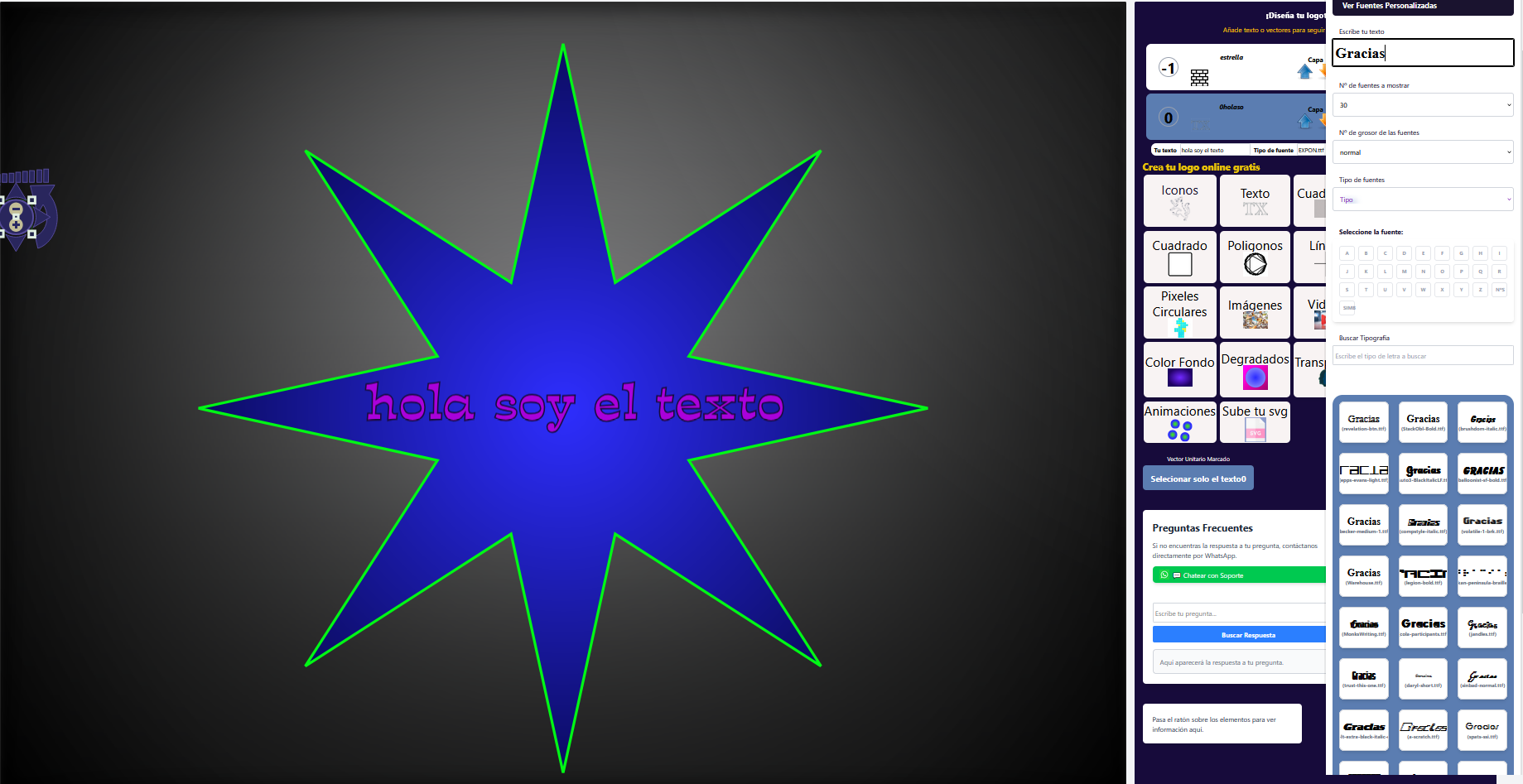
Step 2: Create Text and Path
To make text follow a path, you need two elements: text and a <path>. Follow these steps:
- Create text: Use the right-hand menu to add custom text, as explained in our previous tutorial on how to use text in SVG.
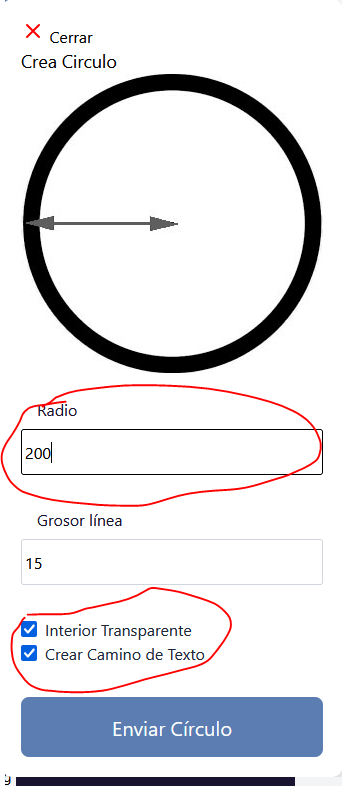
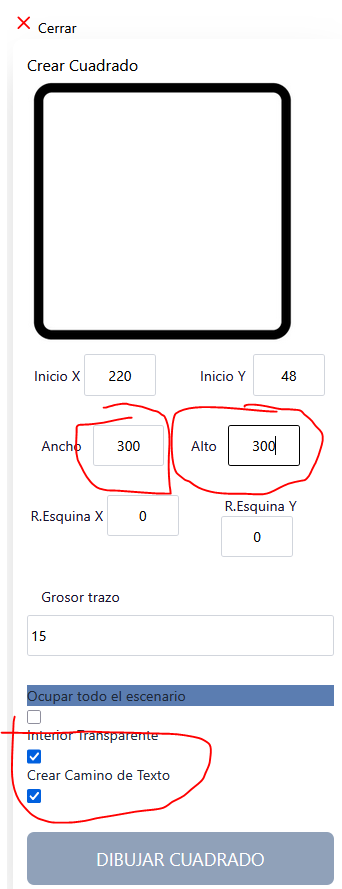
- Create path: Select a shape (circle, curve, square, polygon, etc.) from the design menu. Make sure to:
- Configure the shape without background (outline only) so it becomes a <path>.
- Check the "Create Text Path" box so the shape converts into a <path> instead of a primitive like <rect> or <circle>.
- Optionally, specify the actual width and height measurements of the shape if you know them.
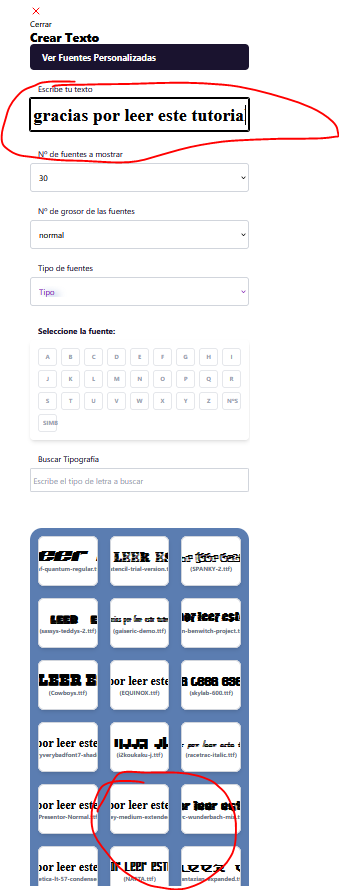
Step 3: Configure Text to Path
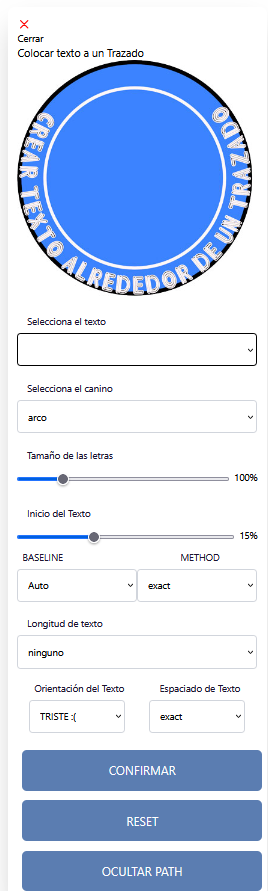
In the "Text to Path" menu, select the shape and text you want to follow the path. You can customize:
- Font size: Adjusts text size.
- Text start: Defines initial offset (similar to
startOffset). - Text length: Controls how much text is shown.
- Text orientation: Chooses direction or alignment.
- Hide path: Decides whether the path is visible in the final result.
Step 4: Finalize and Export
Confirm your options, and the text will automatically adapt to the shape. You can:
- Export as PNG with a transparent background.
- Save as vector SVG.
- View the SVG code to review it based on this tutorial.
- Test with shapes like stars, arcs, or other paths to experiment.
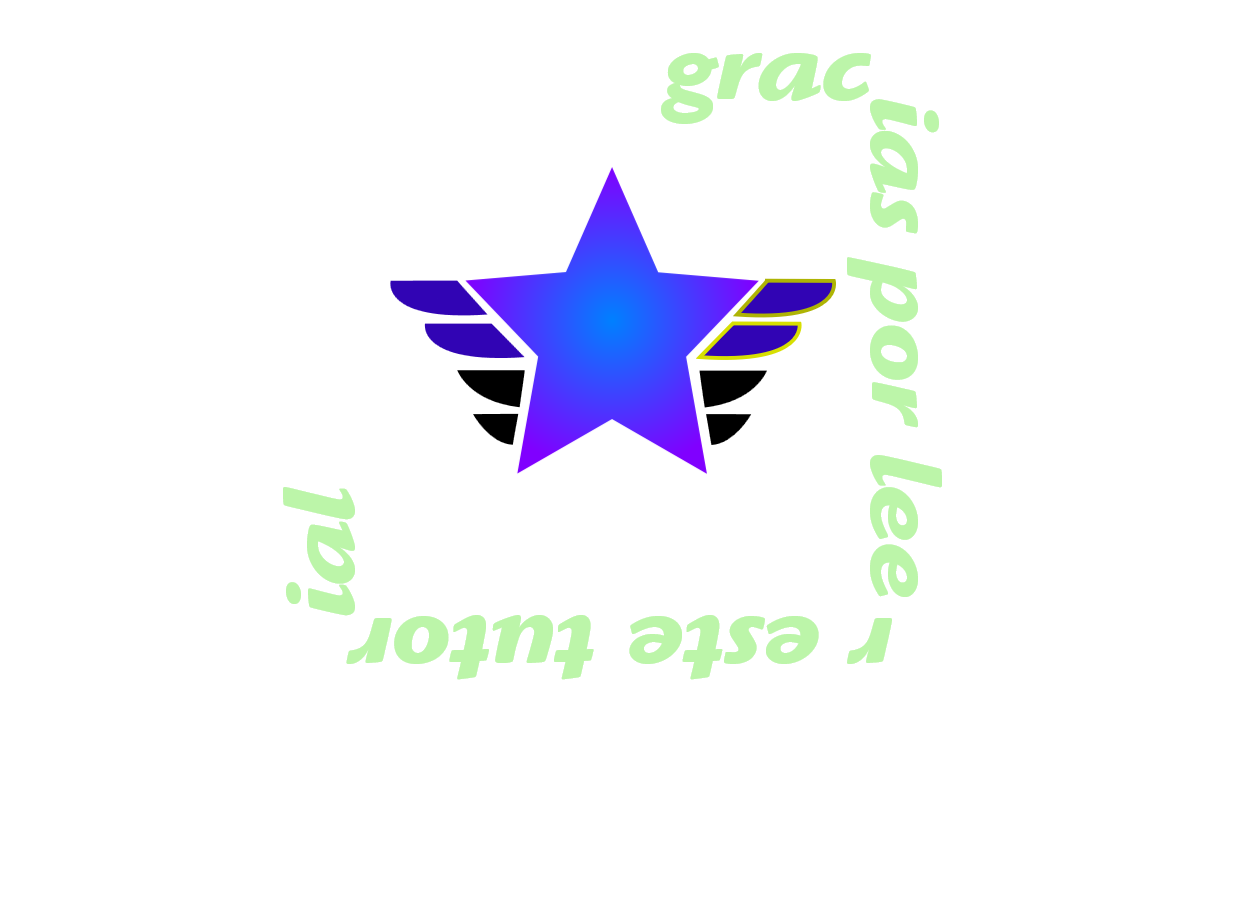
Here is an animated example quickly created on CreadorLogos.com:
Create your custom logo with text surrounding a shape
Now it is your turn! Visit CreadorLogos.com, create your own logo with text on a path, and experiment with animations and transformations. Explore, test different shapes, and share your creations. Design something unique!

