How to Create Logos with <path> in SVG: Step-by-Step Guide
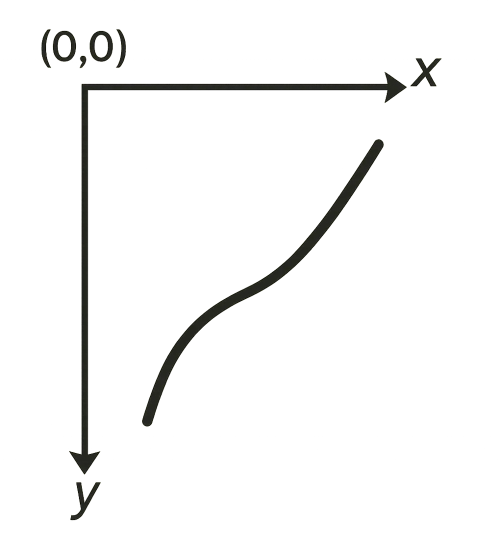
The <path> element in SVG acts like a "pen tool" in vector design software (such as Inkscape) or a polyline in construction apps. It allows you to draw two-dimensional lines and curves, starting from the origin (0,0) at the top-left corner of the SVG canvas. By combining points, you can create flat shapes ranging from straight lines to elegant curves, perfect for logos. This guide will show you how to use <path> with practical examples and how to design logos easily at creadorlogos.com. Let us get started!
Step 1: Understand the Structure of <path>
The d attribute defines the path of <path> using commands and coordinates. The origin (0,0) is at the top-left corner. Example: a basic triangle.
<svg width="200" height="100" xmlns="http://www.w3.org/2000/svg"> <path d="M10 10 L190 10 L100 90 Z" fill="#ff6f61" stroke="#000000" stroke-width="2"></path></svg>Result:
Breakdown of d="M10 10 L190 10 L100 90 Z":
M10 10: M (Move to) moves the cursor to (10, 10) from (0,0).L190 10: L (Line to) draws a line to (190, 10).L100 90: Draws a line to (100, 90).Z: Z (Close path) closes back to the starting point (10, 10).
Uppercase letters (M, L) are absolute coordinates (referred to 0,0). Lowercase letters (m, l) are relative to the previous point.
Step 2: Drawing Curves with <path>
Use C for cubic Bézier curves, perfect for smooth shapes in logos. Example:
<svg width="200" height="100" xmlns="http://www.w3.org/2000/svg"> <path d="M10 80 C50 10, 150 10, 190 80" fill="none" stroke="#0066cc" stroke-width="4"></path></svg>Result:
Breakdown of d="M10 80 C50 10, 150 10, 190 80":
M10 80: Moves the cursor to (10, 80) without drawing.C50 10, 150 10, 190 80: C (Cubic Bézier) draws a curve with:- (50, 10): First control point (initial direction).
- (150, 10): Second control point (final direction).
- (190, 80): End point.
Learn more about curves at javascript.info/bezier-curve.
Step 3: Combining Lines and Curves
Create a curved arrow combining L and C for a dynamic logo:
<svg width="200" height="120" xmlns="http://www.w3.org/2000/svg"> <path d="M10 60 L50 60 C80 10, 120 110, 150 60 L190 60 L170 40 M150 60 L170 80" fill="none" stroke="#ff6f61" stroke-width="4"></path></svg>Result:
Breakdown of d="M10 60 L50 60 C80 10, 120 110, 150 60 L190 60 L170 40 M150 60 L170 80":
M10 60 L50 60: Line to (50, 60).C80 10, 120 110, 150 60: Curve with control points.L190 60 L170 40: Lines for the upper arrowhead.M150 60 L170 80: Line for the lower arrowhead.
Step 4: Design Your Logo on creadorlogos.com
Design logos without manual coding using creadorlogos.com. Follow these steps:
- Choose icons: Select from 20 thematic families of vector icons.
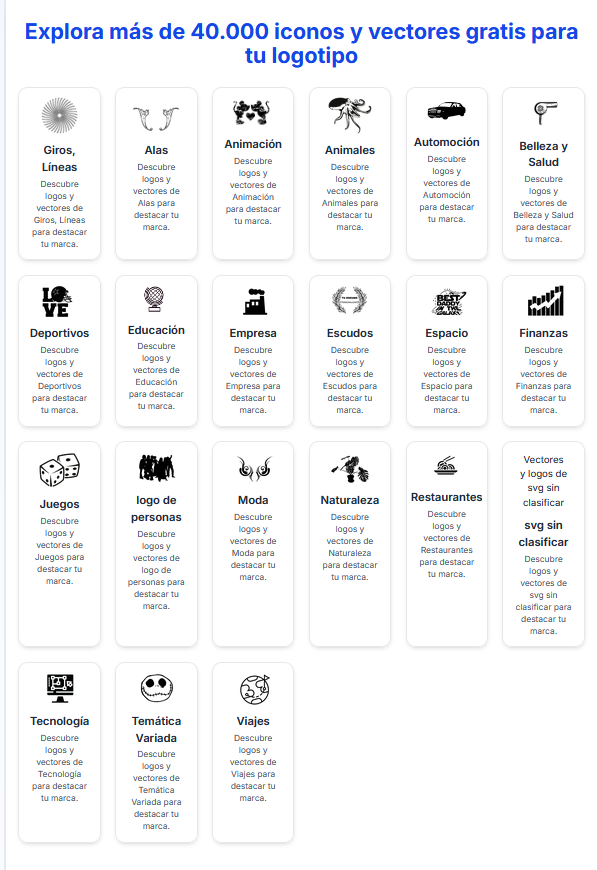
- Add icons to the stage: Add as many icons as you want from the families to build your logo.
- Edit the <path> elements: Hover over items; the <path> elements will highlight in green. Press "Delete" to remove the selected <path>.
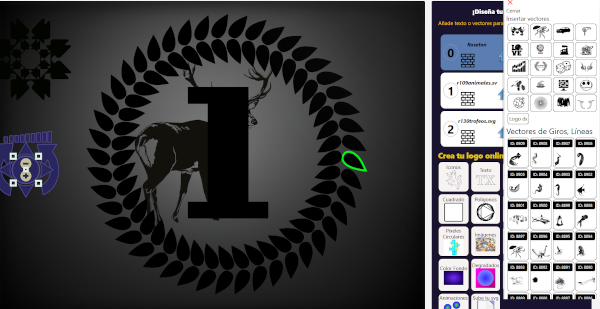
- Copy elements: Select an icon using the left buttons, then use Ctrl+C and Ctrl+V to duplicate it as a new object.
- Edit <path> individually: Click "Select vector only" to isolate a single <path>.
 Copy (Ctrl+C, Ctrl+V) or transform (scale, move) the <path>.
 - Download your logo: Export as an SVG file (compressed in a ZIP) or a PNG with a transparent background.
Over 10,000 designers trust creadorlogos.com, offering 40,000 SVG vectors to inspire you.
Alternatives: Use Inkscape (free) or Adobe Illustrator to design and export to SVG if you prefer dedicated software.
Fun Fact: Generate SVG Code
On creadorlogos.com, click "Generate code" to view the full SVG containing all <path> and primitive shapes.
This code is saved in a database and rendered in a new window to edit or reuse.
Final Tips
- Test: Check your logo in Chrome, Firefox, and Safari.
- Explore: Experiment with more designs at creadorlogos.com.
Share your logo with #DisenaLogos!