You have just opened your business and you need a logo, but you are not a designer and you do not want to pay an agency. The good news: you can create a logo for free yourself, online and without installing anything.
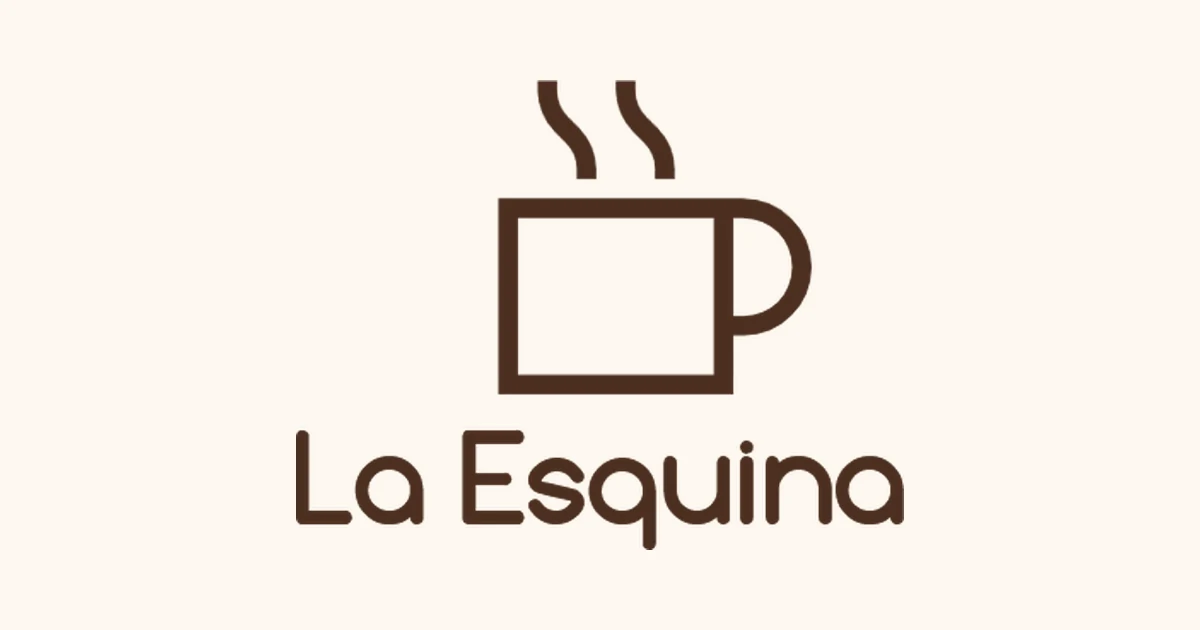
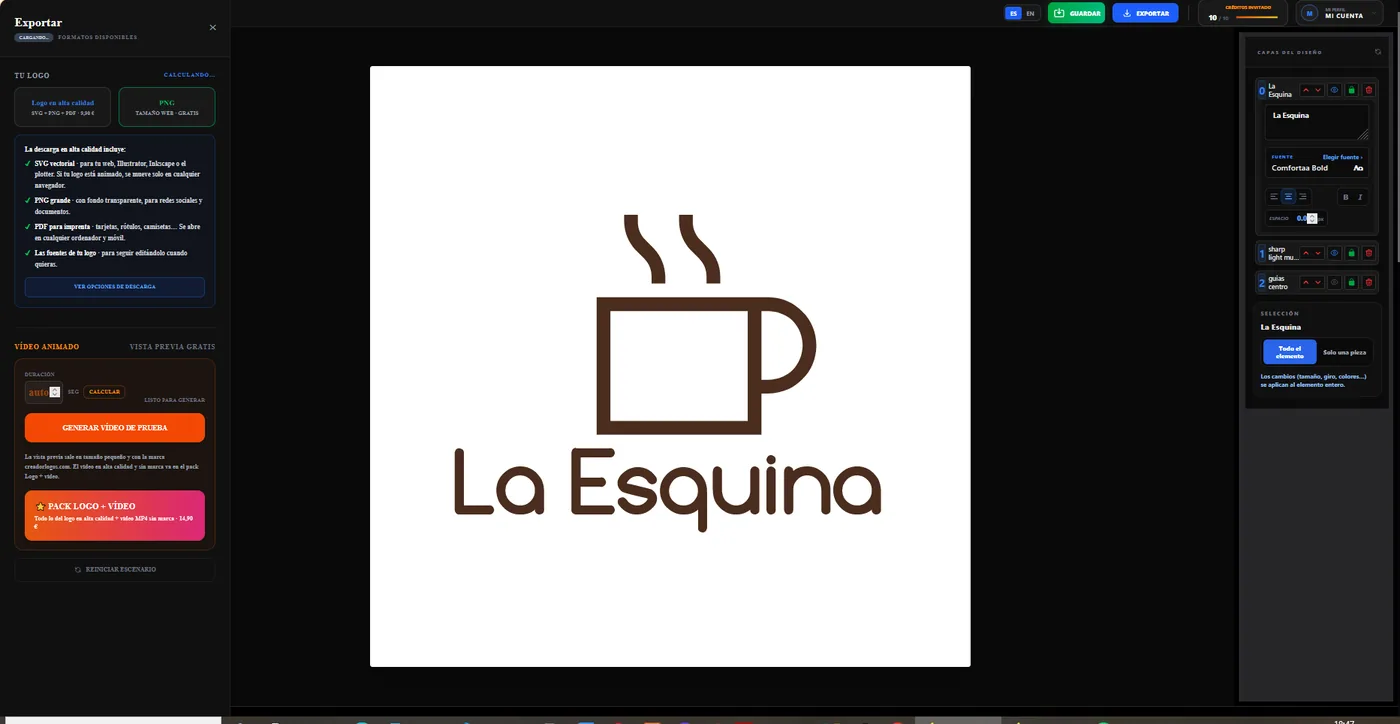
In this guide we make, from start to finish, the logo for an example coffee shop, La Esquina, with creadorlogos.com. It takes about 10 minutes and you do not need to sign up.
1. Type your business name
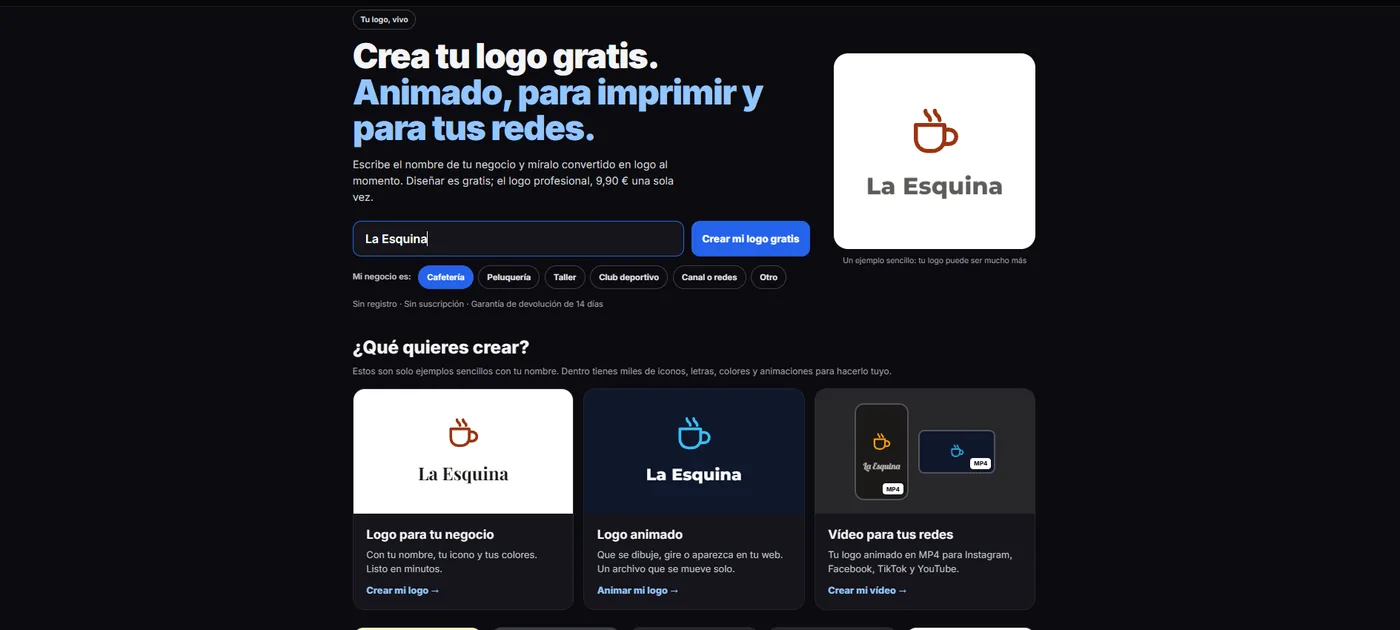
Go to creadorlogos.com and type the name in the box on the home page. Below it, choose what your business does (coffee shop, hair salon, workshop…). You will see your name turned into a logo instantly. Click Create my logo for free and the editor opens with your text already in place.
2. Get to know the canvas
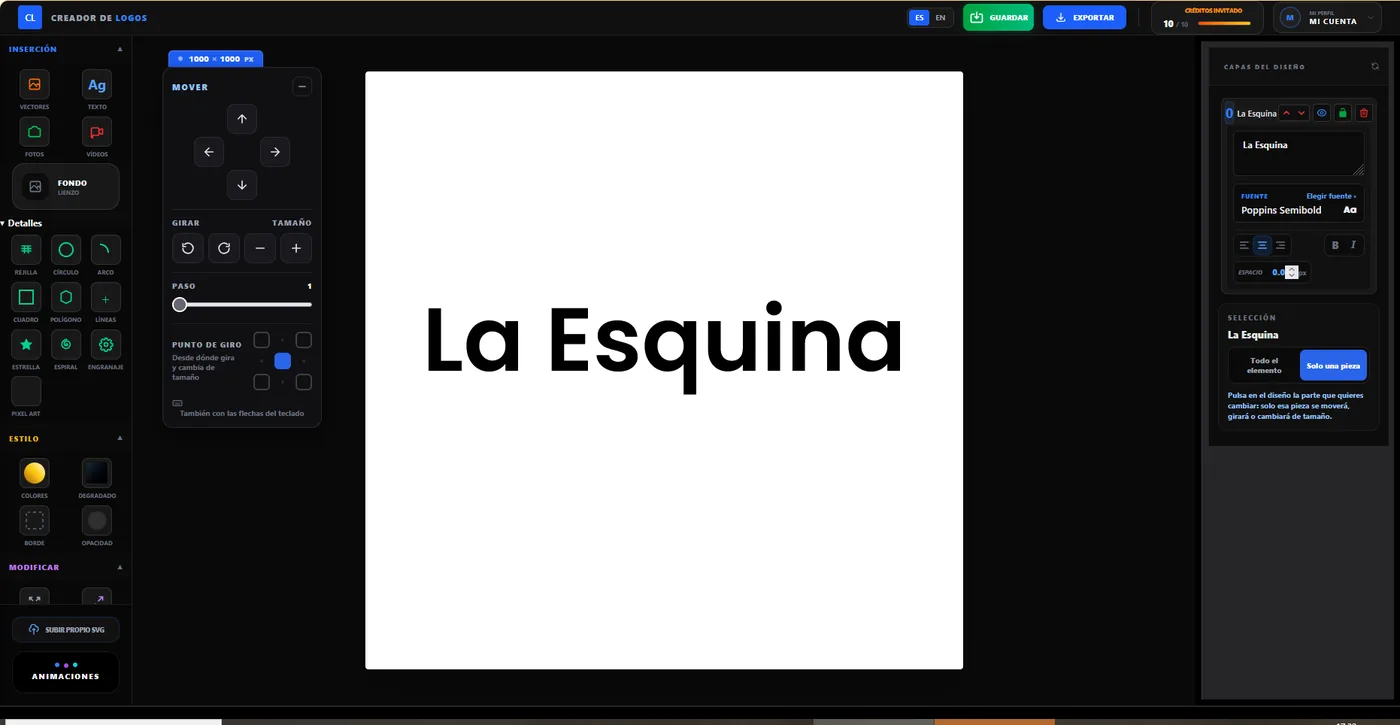
The editor opens a square canvas of 1000 × 1000 pixels, the ideal size for a logo. Its size is always shown at the top. What you see is exactly what you will download.
3. Choose the font
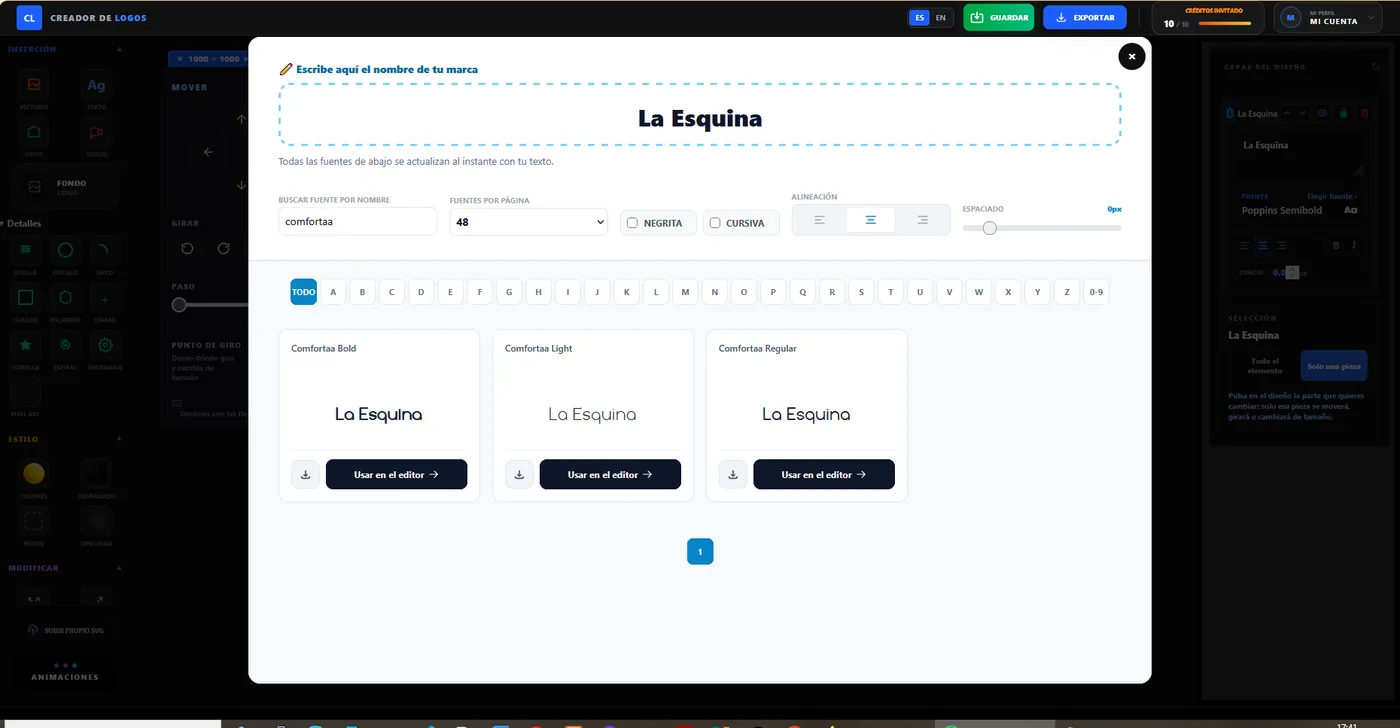
A font says a lot: a rounded one feels friendly; one with serifs, elegant; a bold, narrow one, sporty. In the layers panel, click Font next to your text: you will see your business name written in over 41,000 fonts. Search by name, filter by bold, italic or first letter, and click Use in editor on the one you like.
For a neighbourhood coffee shop, a rounded, friendly font works very well: we chose Comfortaa Bold. If you want to compare at your own pace, you can also try your name on our fonts for logos page.
4. Add an icon
Open Vectors and search for what represents your business: «cup», «scissors», «ball»… There are over 53,000 icons. For La Esquina we searched for «cup» and picked a steaming cup. Click Customize in Editor and it appears on your canvas.
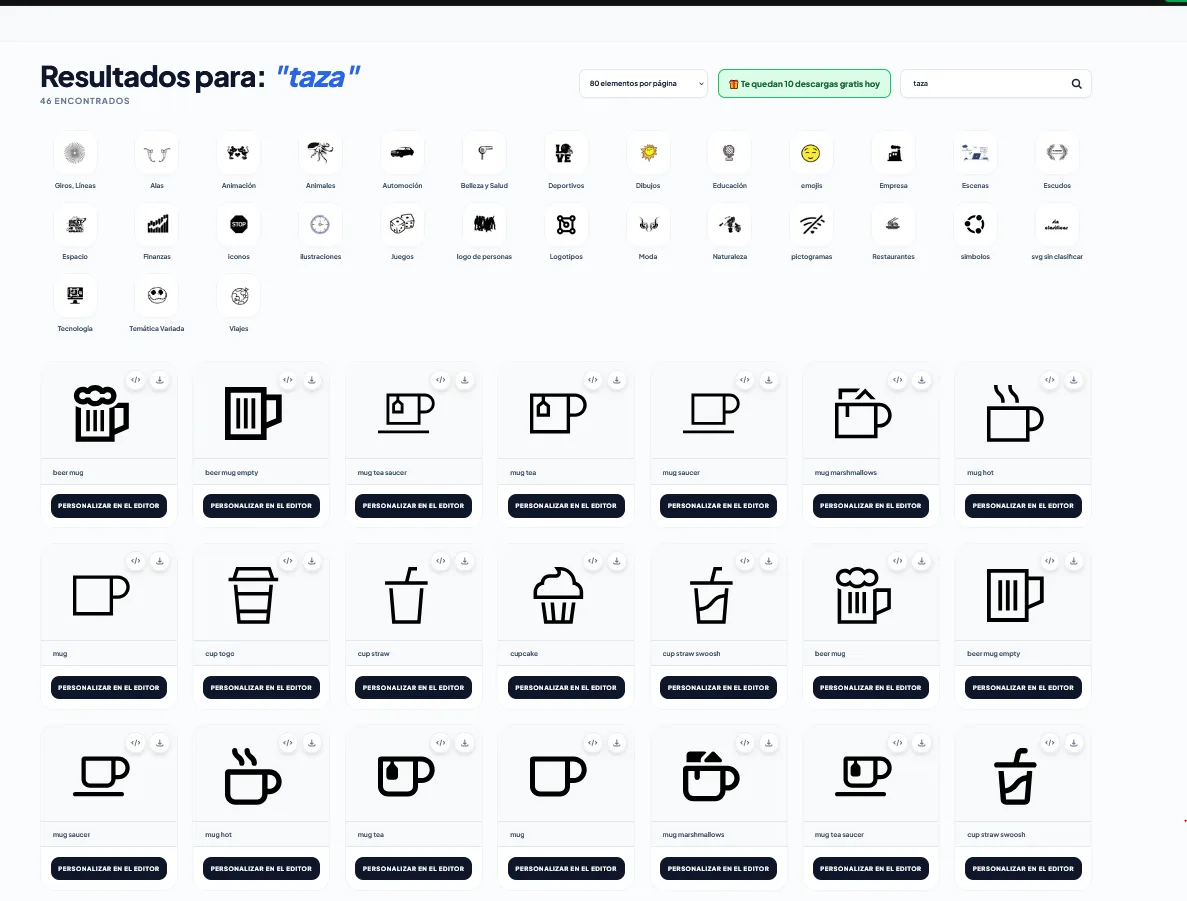
Tip: choose simple icons. A logo is often seen small (on a business card, on an Instagram profile), and fine details get lost.
5. Place each piece
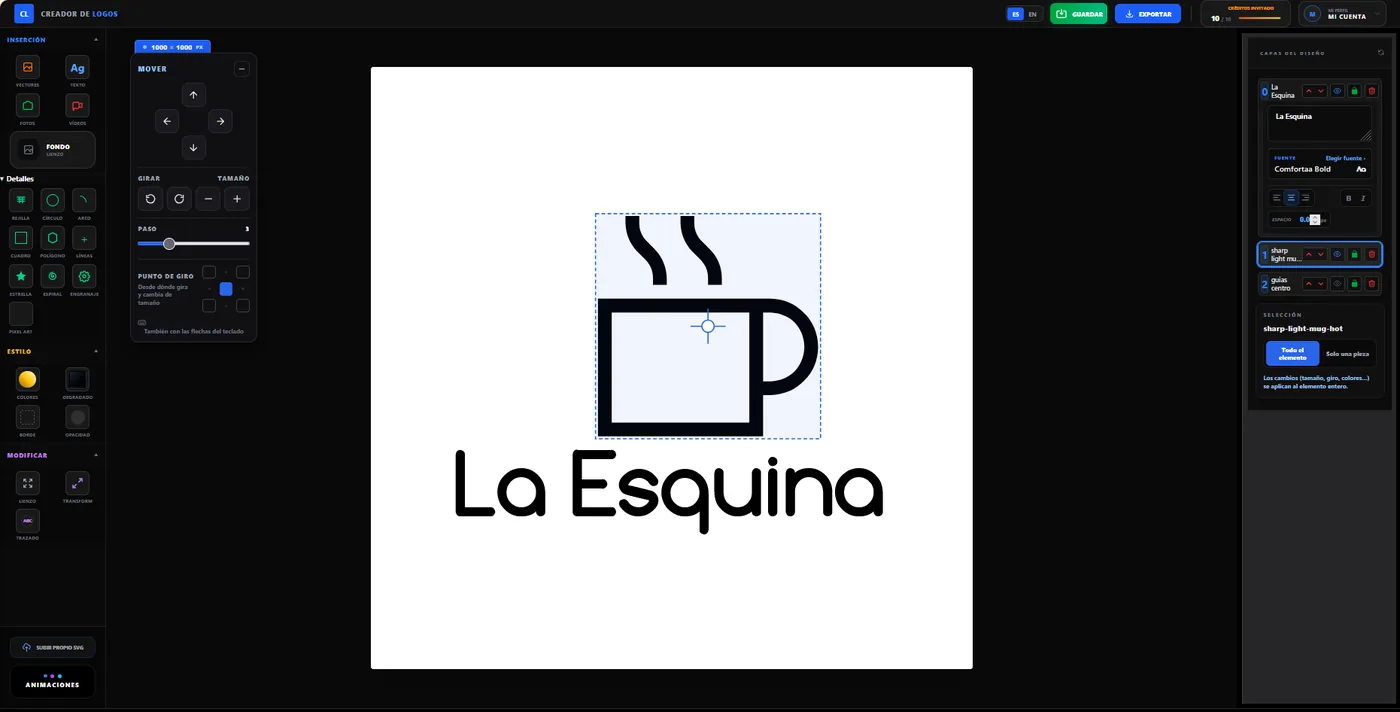
Click a piece to select it: you will see a blue box with its centre marked, and its name lights up in the layers panel. Move it with the Move panel or the arrow keys, rotate it, and resize it with − and +. The Step slider sets how far each click moves it: lower it for fine tuning. For La Esquina we placed the cup above the name, centred.
6. Add colour
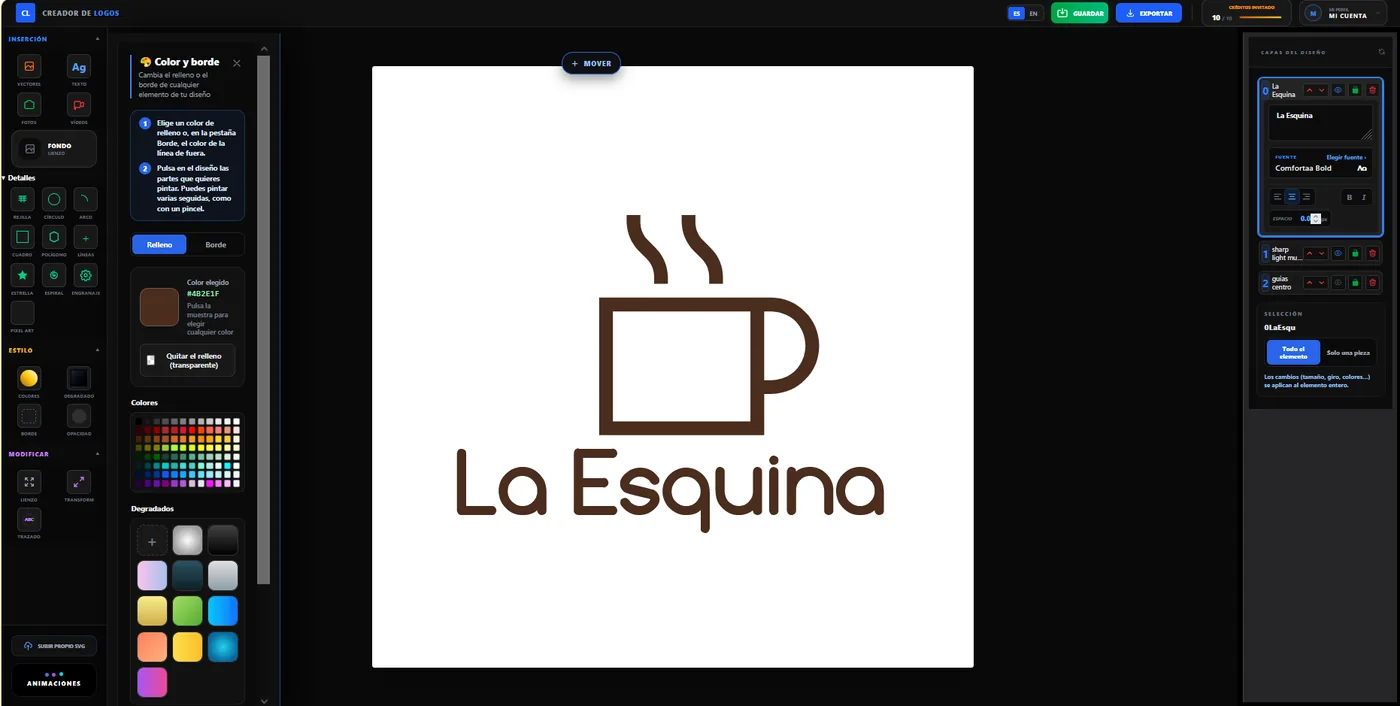
Open Colours (under Style), choose a colour and click the pieces you want to paint, like with a brush. Two colours are usually enough: a main one and a supporting one. If your brand already has a colour, click the large swatch and enter its code. For a coffee shop, browns bring coffee to mind: for La Esquina we used a coffee brown (#4B2E1F).
7. Download it
Click Export. You have two options:
- Free: a 500-pixel PNG with a transparent background, ideal to start using on your website or social media.
- Professional logo for €9.90, one-off payment: your logo in high quality with a print-ready PDF, the vector SVG file, a large transparent PNG and the fonts. With these you can print business cards, signs or T-shirts without any blur.
Mistakes to avoid
- Too many elements: a name and an icon are usually enough.
- Hard-to-read fonts: if it cannot be read small, it does not work.
- Pieces touching: leave some space between the icon and the name.
- Using other brands' logos: your logo should be yours; that way you can also register it.
What next?
You now have your business logo. You can go back to the editor whenever you like to change it, or take the next step: make it move on your website or turn it into a video for social media (logo + video pack, €14.90).
No sign-up · Designing is free · Professional logo €9.90